Introduction
Welcome to Goa 1.0!
Goa is a small expression-based programming language, designed to be lightweight and easy for people to understand and learn. It uses a clean, parentheses-driven syntax inspired by languages like Lisp. It deals exclusively with numbers, allowing people to experiment with logic and automate tasks that deal with integers and floats. In Goa, functions/expressions are called statements.
Goa is designed to be:
- easily understandable
- expandable
- and customizable
Goa is open source, allowing for users to change the code to suit their needs.
Some important features of Goa...
- All statements have either 0, 1, or 2 arguments, making it easy to understand and remember what statements do.
IF, ELSE IF, ELSE, WHILE,andREPEATblocks all haveENDstatements to make it easy to see where they end.- Goa ignores whitespace and formatting like indentation.
- Goa is safe and predictable (at least I hope).
- The IDE is complete with browser saving and file downloading and uploading.
Goa is in 1.0, meaning it is on its first full release!
Up to the 0.8 Beta, the developer added all the basic statements that gave Goa its structure.
In 0.8 Beta, the developer fixed some bugs involving parsing the code.
In 0.9 Beta, the developer added support for floats, added the <= and >= comparators, the FDIV, TOINT, TOFLOAT, and ROOT statements, and made changes to the EXP, BASE, and DIV statements.
In the 1.0 full release, the developer added logarithms, trig statements, rounding statements, more random statements, GCD and LCM statements, and factorial statements.
Getting Started with the IDE
So, you want to use Goa. What's first?
First, click the IDE tab in the top right of the navbar. You should see something like the image below:
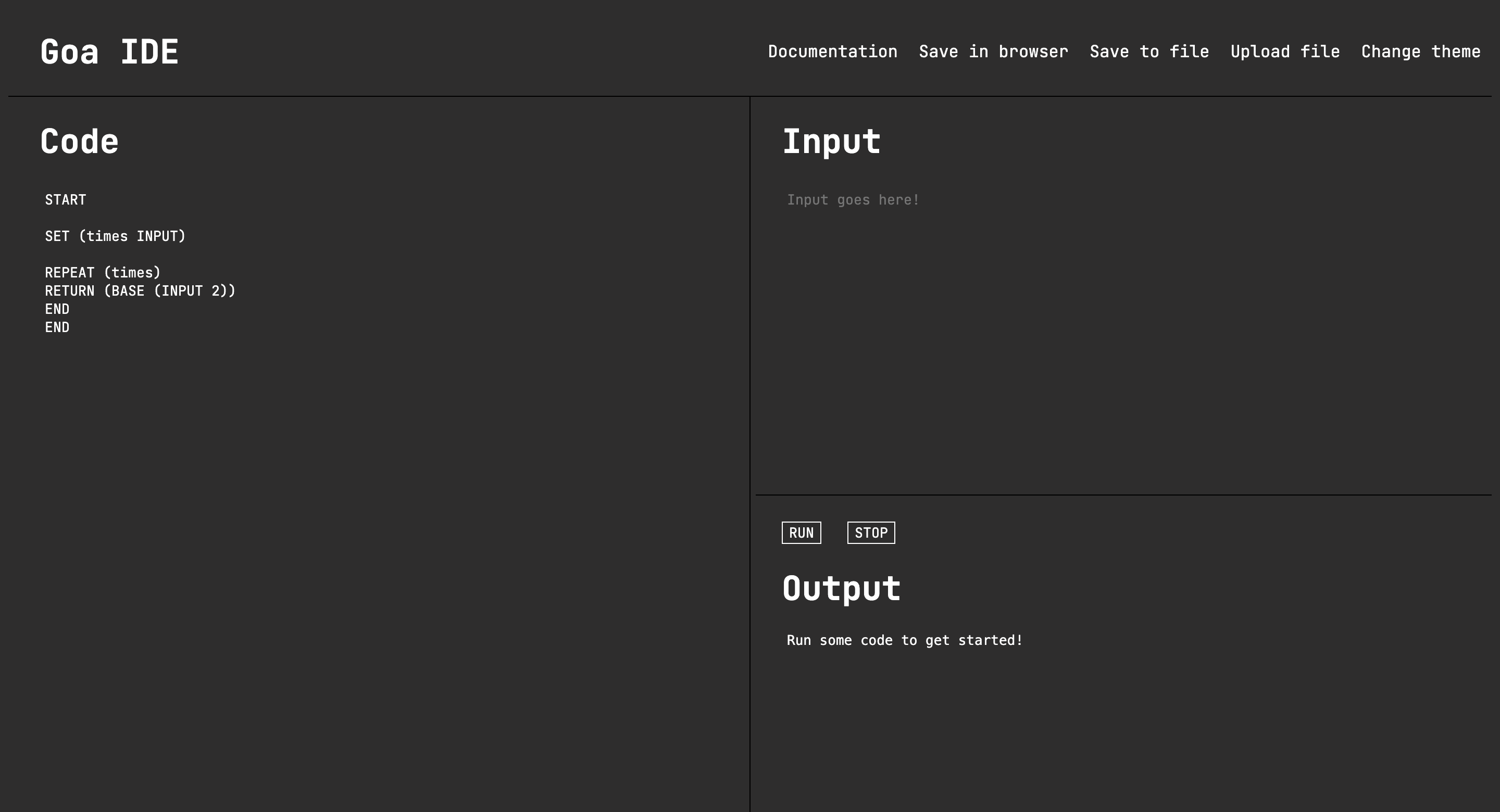
A screenshot of the Goa Web IDE.
You will notice that there are 4 main sections.
The Navbar
The Navbar contains 5 buttons.
The first one, Documentation, opens up this page. This is for you to refer to in case you ever forget anything about Goa.
Next is the Save in browser button. It saves whatever code you currently have in the code area to localstorage, allowing it to load up whenever you open the web IDE.
Thirdly is the Save to file button. It saves whatever code you currently have in the code area to a .goa file on your computer.
Fourth is the Upload file button. It allows you to upload code from a .goa file on your computer.
Finally, there is the Change theme button. It allows you to change the theme of the web IDE between light and dark mode.
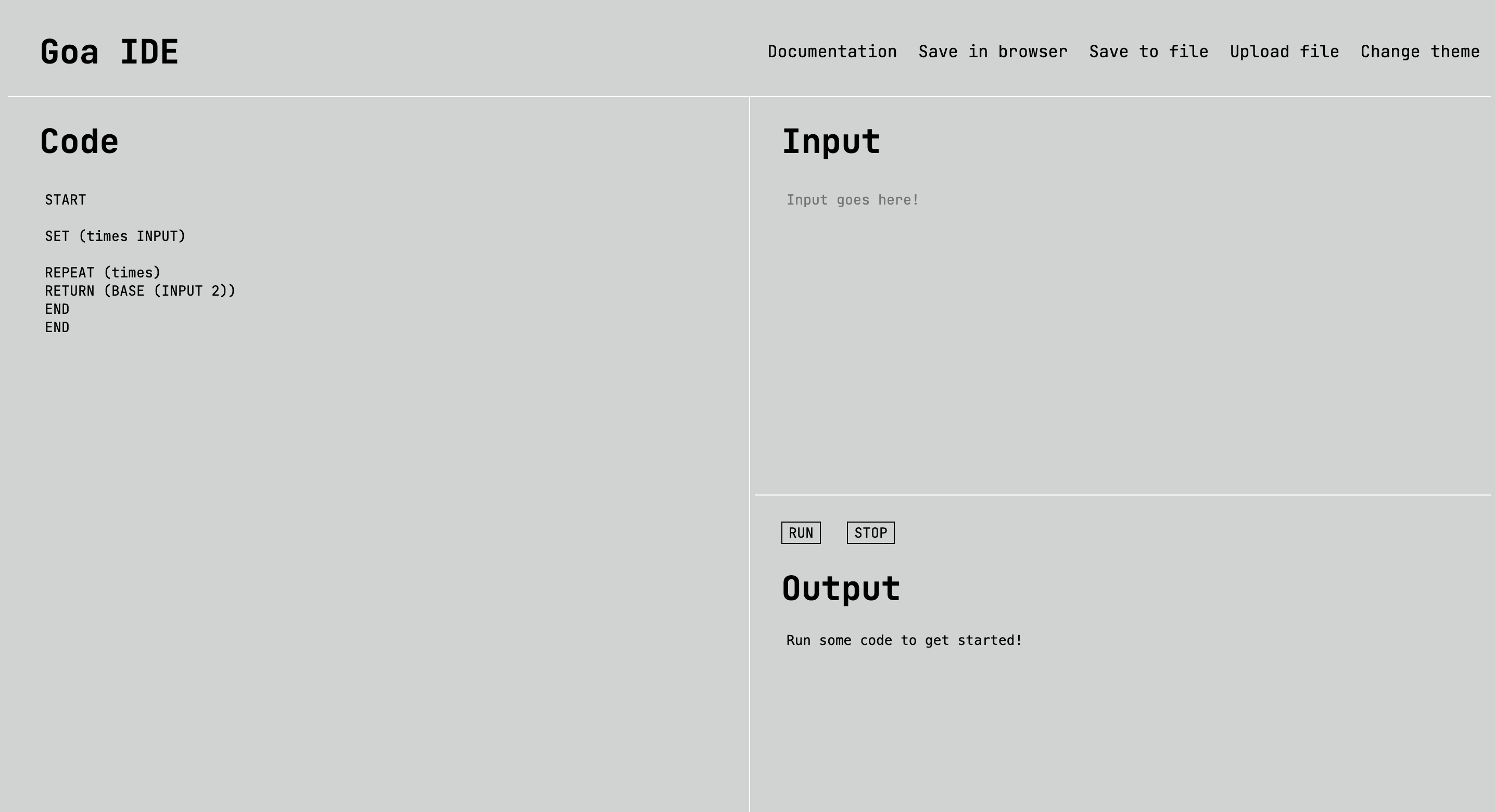
A screenshot of the Goa Web IDE in light mode.
The Code
Located on the left half of the screen, this is where you place your code!
Every program must have a START statement and an END statement. Without them, your program will not compile. For example, if you have the following program:
START
RETURN (4)
You will receive the following error message: ERROR: Program must have one START and one END.
Make sure to save your code often! The Goa Web IDE currently does not support auto-saving.
The Input
Located in the top of the right half of the screen, this is where you place your input!
Goa only deals with integers and floats, so all inputs should be numbers. Numbers should be separated by spaces, but other than that, it doesn't matter.
1
4
the same as
1


4
or
1
4
As long as the numbers are separated!
You can take input by running the INPUT statement. The INPUT statement must be used with another statement, like the SET statement to assign it to a variable, or the RETURN statement to print it out, just to name a few. Each INPUT will take the next number in your input. Goa will not return an error if there are more inputs than you pull for in your code, but it will return ERROR: No more input available. if the number of inputs available are less than the number that you pull for.
You can learn more by going to INPUT section!
The Output
Located in the bottom of the right half of the screen, this is where the program returns output and errors!
In order to make the program print something out in the output, you must use the RETURN statement. You can learn more by going to the RETURN section!
Syntax
The syntax of Goa can be divided into several sections.
Program Structure
Every program in Goa must have a START and END statement.
If you do not, you will receive the following error message: ERROR: Program must have one START and one END.
Statement Syntax
All statements in Goa follow this syntax:
STATEMENT (argument argument)
Depending on what statement you are using, you may have to use 1 or 2 arguments. It does not matter if you place a space between the statement and the parentheses. For example,
ADD (1 2)
is the same as
ADD(1 2)
or even
ADD (1 2)As well as that, it doesn't matter how many spaces are between the arguments (if 2 arguments are required) as long as there is a space between them.
However, it is important to note that parentheses are always needed. If you do not place a parentheses in the correct spot, you will get an error. For example, in the program below:
START # note the start and end statements
RETURN (3
END
The user has failed to add the closing parenthesis, causing an error message to return.
ERROR: Missing parentheses in: RETURN (3
Adding too many parentheses will also return an error message
START
RETURN (3))
END
And will return this error message:
ERROR: Unexpected extra tokens
As well as that, nested statements are allowed. For example,
RETURN (ADD (2 MULT (2 3)))
will return 2 + (2 x 3), which is 8.
Comment Syntax
To make a comment in your code, simply use a # symbol. For example, typing # hello world will cause the compiler to skip over it. Inline comments are also allowed, allowing you to type things like:
RETURN (ADD (INPUT 2)) # this allows you to print out the sum of the input and 2.
All on the same line.
Float Syntax
As of Goa 0.9 Beta, Goa can now handle floats. That means Goa can handle numbers like 0.8 and 1.55. When writing floats, anything with a decimal will be counted as float. That includes numbers like .6, 6.5, 6., and 6.0. However, anything with more than one decimal point will be rejected, like 5.5.3.
Variable Syntax
In Goa, variables should be alphanumeric. Goa variables do not support characters like underscores or addition signs.
Statements
In Goa, only integers and floats are used. That means that there is no support for strings.
Here is a list of all statements in Goa.
- START and END
- SET
- Math Statements
- ADD
- SUB
- MULT
- DIV
- FDIV
- EXP
- ROOT
- BASE
- ABS
- MOD
- RAND
- RANDFLOAT
- RANDSIGN
- MIN
- MAX
- RANGE
- TOINT
- TOFLOAT
- LOG
- ROUND
- FLOOR
- CEIL
- GCD
- LCM
- SIN
- COS
- TAN
- ARCSIN
- ARCCOS
- ARCTAN
- FACT
- PI
- E
- INPUT
- RETURN
- Logic Statements
START and END
To mark the start of a program, use the START statement.
To mark the end of a program, use the END statement.
Every program needs these two statements. Otherwise, you will receive the following error: ERROR: Program must have one START and one END.
If there is no START or END, there will be an error.
SET
To set a variable to a value, use the following statement
SET (variable argument)
Where the variable is the name of the variable and argument is the value.
For example, to set a variable x to 10, run
SET (x 10)
Math Statements
Math statements on their own do not do anything. They just run, but will not return anything or be assigned to a variable. Use the correct statements for that (SET and RETURN).
In Goa, there is safe promotion. That means adding two integers will produce an integer, but any calculation involving a float will always return a float.
ADD
To add two numbers, use the following statement
ADD (argument argument)
The ADD statement ONLY supports 2 values. Otherwise, you will get an error. To add multiple numbers, run
ADD (argument ADD (argument argument))
to add 3 numbers. Nested statements are allowed, so you can repeat this for as many numbers as you need.
For example, to add 2 and 5, run
ADD (2 5)
To add 2 5 and 7, run
ADD (2 ADD (5 7))
SUB
To subtract two numbers, use the following statement
SUB (argument argument)
Where the second argument is subtracted from the first.
The SUB statement ONLY supports 2 values. Otherwise, you will get an error. To subtract multiple numbers, run
SUB (SUB (argument argument) argument)
to subtract 3 numbers. Nested statements are allowed, so you can repeat this for as many numbers as you need.
For example, to do 5 - 2, run
SUB (5 2)
To do 7 - 5 - 2, run
SUB (SUB (7 5) 2)
MULT
To multiply two numbers, use the following statement
MULT (argument argument)
The MULT statement ONLY supports 2 values. Otherwise, you will get an error. To multiply multiple numbers, run
MULT (argument MULT (argument argument))
to multiply 3 numbers. Nested statements are allowed, so you can repeat this for as many numbers as you need.
For example, to multiply 2 and 5, run
MULT (2 5)
To multiply 2 5 and 7, run
MULT (2 MULT (5 7))
DIV
To divide two numbers and get an integer answer, use the following statement
DIV (argument argument)
Where the first argument is divided by the second. The answer will be rounded to the nearest whole number. To do division with floats, use the FDIV statement below.
The DIV statement ONLY supports 2 values. Otherwise, you will get an error. To divide multiple numbers, run
DIV (argument DIV (argument argument))
to divide 3 numbers. Nested statements are allowed, so you can repeat this for as many numbers as you need.
For example, to do 8 divided by 4, run
DIV (8 4)
To do 8 divided by 2 divided by 4, run
DIV (DIV (8 2) 4)
FDIV
To divide two numbers and get a float answer, use the following statement
FDIV (argument argument)
Where the first argument is divided by the second.
The FDIV statement ONLY supports 2 values. Otherwise, you will get an error. To divide multiple numbers, run
FDIV (argument FDIV (argument argument))
to divide 3 numbers. Nested statements are allowed, so you can repeat this for as many numbers as you need.
For example, to do 8 divided by 5, run
FDIV (8 5)
To do 8 divided by 5 divided by 2, run
FDIV (FDIV (8 5) 2)
EXP
To do exponentials, use the following statement
EXP (argument argument)
Where the first argument is raised to the power of the second argument.
The EXP statement ONLY supports 2 values. Otherwise, you will get an error. To exponent a number multiple times, run
EXP (EXP (argument argument) argument)
to exponent a number 2 times. Nested statements are allowed, so you can repeat this for as many numbers as you need.
For example, to do 5 squared, run
EXP (5 2)
To do 5 squared cubed, run
EXP (EXP (5 2) 3)
As of 0.9 Beta, Goa does not support negative exponents. To do roots, use the ROOT statement below.
ROOT
To do roots, use the following statement
ROOT (argument argument)
Where the second argument is n and the nth root is taken of the first argument.
The ROOT statement ONLY supports 2 values. Otherwise, you will get an error. To root a number multiple times, run
ROOT (ROOT (argument argument) argument)
to root a number 2 times. Nested statements are allowed, so you can repeat this for as many numbers as you need.
For example, to do the square root of 5, run
ROOT (5 2)
To do the third root of the square root of 5, run
ROOT (ROOT (5 2) 3)
The ROOT statement requires the second argument to be greater than 0 and for the second argument to be odd if the first argument is negative.
BASE
To convert numbers between bases, use the following statement
BASE (argument argument)
Where the first argument is converted to the base of the second.
The BASE statement ONLY supports 2 values. Otherwise, you will get an error.
For example, to convert 5 to base 2, run
BASE (5 2)
As of 0.9 Beta, Goa only takes integers for both arguments.
ABS
To find the absolute value of a number, use the following statement
ABS (argument)
Where the absolute value of the argument is given.
The ABS only needs 1 argument. Putting extra arguments will return an error.
For example, to find |-16|, run
ABS (-16)
MOD
To do modular division, use the following statement
MOD (argument argument)
Where the remainder of the first argument divided by the second is returned.
The MOD statement ONLY supports 2 values. Otherwise, you will get an error. To modularly divide multiple numbers, run
MOD (MOD (argument argument) argument)
to modularly divide a number 2 times. Nested statements are allowed, so you can repeat this for as many numbers as you need.
For example, to do 5 mod 2, run
MOD (5 2)
To do 15 mod 6 mod 2, run
MOD (MOD (15 6) 2)
RAND
To find a random integer (inclusive), run the following statement
RAND (argument argument)
Where a random integer is generated inclusive between the minimum value (the first argument) and the maximum (the second argument).
The RAND statement ONLY supports 2 values. Otherwise, you will get an error.
For example, to generate a random integer between 1 and 10 (inclusive), run
RAND (1 10)
RANDFLOAT
To find a random float (inclusive), run the following statement
RANDFLOAT (argument argument)
Where a random float is generated inclusive between the minimum value (the first argument) and the maximum (the second argument).
The RANDFLOAT statement ONLY supports 2 values. Otherwise, you will get an error.
For example, to generate a random float between 1 and 10 (inclusive), run
RANDFLOAT (1 10)
RANDSIGN
To generate a random sign (positive or negative), run the following statement
RANDSIGN
Where either -1 or 1 is returned.
The RANDSIGN statement requires 0 arguments and therefore no parentheses.
MIN
To find the smaller of 2 numbers, use the following statement
MIN (argument argument)
Where the smaller argument is given.
The MIN statement ONLY supports 2 values. Otherwise, you will get an error.
For example, to find the smaller of 2 and 14, run
MIN (2 14)
MAX
To find the larger of 2 numbers, use the following statement
MAX (argument argument)
Where the larger argument is given.
The MAX statement ONLY supports 2 values. Otherwise, you will get an error.
For example, to find the larger of 2 and 14, run
MAX (2 14)
RANGE
To find the range between two numbers, run the following statement
RANGE (argument argument)
Where the range is determined from the two numbers.
The RANGE statement ONLY supports 2 values. Otherwise, you will get an error.
For example, to find the range of 5 and 124, run
RANGE (5 124)
TOINT
To convert a number to an integer, use the following statement
TOINT (argument)
Where the argument will be rounded to the nearest number.
The TOINT statement only needs 1 argument. Putting extra arguments will return an error.
For example, to convert the float 1.7 to an integer, run
TOINT (1.7)
TOFLOAT
To convert a number to a float, use the following statement
TOFLOAT (argument)
Where the argument will be converted into a float.
The TOFLOAT statement only needs 1 argument. Putting extra arguments will return an error.
For example, to convert the integer 3 to a float, run
TOFLOAT (3)
LOG
To do logarithms, run the following statement
LOG (argument argument)
Where the first argument is the value and the second argument is the base.
The LOG statement ONLY supports 2 values. Otherwise, you will get an error.
For example, to find LOG 10 100, run
LOG (100 10)
ROUND
To round a number, run the following statement
ROUND (argument argument)
Where the first argument is rounded to second argument places.
The ROUND statement ONLY supports 2 values. Otherwise, you will get an error.
For example, to round 5.1249 to 2 places, run
ROUND (5.1249 2)
FLOOR
To round a number down, run the following statement
FLOOR (argument)
Where the argument is rounded down to the nearest whole number.
The FLOOR statement only needs 1 argument. Putting extra arguments will return an error.
For example, to round 5.1249 down, run
FLOOR (5.1249)
CEIL
To round a number up, run the following statement
CEIL (argument)
Where the argument is rounded up to the nearest whole number.
The CEIL statement only needs 1 argument. Putting extra arguments will return an error.
For example, to round 5.1249 up, run
CEIL (5.1249)
GCD
To find the greatest common divisor of two numbers, run the following statement
GCD (argument argument)
Where the greatest common divisor of the two arguments is returned.
The GCD statement ONLY supports 2 values. Otherwise, you will get an error.
For example, to find the greatest common divisor of 4 and 18, run
GCD (4 18)
LCM
To find the least common multiple of two numbers, run the following statement
LCM (argument argument)
Where the least common multiple of the two arguments is returned.
The LCM statement ONLY supports 2 values. Otherwise, you will get an error.
For example, to find the least common multiple of 4 and 18, run
LCM (4 18)
SIN
To find the sine of a number, run the following statement
SIN (argument)
Where the sine of the argument is given. Arguments must be given in degrees.
The SIN statement only needs 1 argument. Putting extra arguments will return an error.
For example, to find the sine of 90, run
SIN (90)
COS
To find the cosine of a number, run the following statement
COS (argument)
Where the cosine of the argument is given. Arguments must be given in degrees.
The COS statement only needs 1 argument. Putting extra arguments will return an error.
For example, to find the cosine of 90, run
COS (90)
TAN
To find the tangent of a number, run the following statement
TAN (argument)
Where the tangent of the argument is given. Arguments must be given in degrees.
The TAN statement only needs 1 argument. Putting extra arguments will return an error.
For example, to find the tangent of 45, run
TAN (45)
ARCSIN
To find the arcsine of a number, run the following statement
ARCSIN (argument)
Where the arcsine of the argument is given. It will return in degrees.
The ARCSIN statement only needs 1 argument. Putting extra arguments will return an error.
For example, to find the arcsine of 1, run
ARCSIN (1)
ARCCOS
To find the arccosine of a number, run the following statement
ARCCOS (argument)
Where the arccosine of the argument is given. It will return in degrees.
The ARCCOS statement only needs 1 argument. Putting extra arguments will return an error.
For example, to find the arccosine of 0, run
ARCCOS (0)
ARCTAN
To find the arctangent of a number, run the following statement
ARCTAN (argument)
Where the arctangent of the argument is given. It will return in degrees.
The ARCTAN statement only needs 1 argument. Putting extra arguments will return an error.
For example, to find the arctangent of 1, run
ARCTAN (1)
FACT
To find the factorial of a number, run the following statement
FACT (argument)
Where the factorial of argument is returned.
The FACT statement only needs 1 argument. Putting extra arguments will return an error.
For example, to find 5!, run
FACT (5)
PI
To use pi in your programs, use the following statement
PI
The PI statement does not require any arguments.
E
To use e in your programs, use following statement
E
The E statement does not require any arguments.
INPUT
To take the next number in input, use the following statement
INPUT
However, by itself, it does nothing. You must put it inside another statement, like a SET, Math statement, RETURN, etc.
INPUT will return an error if there are no more numbers in the input area.
For example, to add 2 to the number in input, run
ADD (2 INPUT)
RETURN
To print something out in the output area, use the following statement
RETURN (argument)
Where the argument is printed out in the output area.
The RETURN statement ONLY supports 1 value. Putting extra arguments will return an error.
For example, to print out the number 15, run
RETURN (15)
Logic Statements
All logic statements in Goa use an END statement to mark where they end.
Comparators
There are 6 comparators in Goa.
<- Use this comparator for "less than">- Use this comparator for "greater than"<=- Use this comparator for "less than or equal to">=- Use this comparator for "greater than or equal to"=- Use this comparator for "equal to"!=- Use this comparator for "not equal to"
Use these in the logic statements below.
REPEAT
REPEAT statements in Goa are for loops. They repeat a block of code for a set amount of times. To use them, follow the format below:
REPEAT (argument)
# code
END
Where the argument tells you how many times to repeat it. The END statement is important because it marks where the code block ends. Without it, you will get an error message.
For example, if you wanted to print out the number 10 5 times, you would run:
REPEAT (5)
RETURN (10)
END
IF
IF statements in Goa also include the ELSE IF and ELSE blocks. They allow you to check if a condition is true.
The basic format of IF blocks is shown below.
IF (statement)
# code
END

ELSE IF (statement) # you can add as many as you want - they are optional
# code
END # notice how every block has an END statement

ELSE # no statement, they are optional, but only add one
# code
END
Statements are created with comparators. An example of a statement with a comparator is (x > 10). So if this was true, it would activate that code block and skip all blocks below it.
ELSE IF and ELSE blocks are optional. You can add as many ELSE IF blocks as you want but only 1 ELSE block. Notice how each block has an END tag.
WHILE
WHILE statements repeat a block of code until a condition is satisfied. Make sure that the condition can be satisfied so it doesn't run forever. Goa does not automatically stop loops that run forever.
The basic format of WHILE statements is shown below.
WHILE (statement)
# code
END
The condition is created with comparators. The format of a condition is value comparator valueAn example of a condition with a comparator is x < 10. So in a WHILE block, while x is less than 10, the code will run.
For example, you can use it to return numbers in increasing order.
SET (x 0)
WHILE (x < 10)
SET (x ADD (x 1))
RETURN (x)
END
Errors
Below is a list of each error message, and what causes them.
- ERROR: Program must have one START and one END.
- Occurs when a
STARTorENDstatement is missing - Occurs when an
ENDstatement occurs before aSTARTstatement - ERROR: Invalid number: <value>
- Occurs when the value in the input area is not a number
- ERROR: Missing parentheses in: <line>
- Occurs when there are not parentheses in a statement that should have one
- ERROR: Missing END for block
- Occurs when there is not a closing
ENDsattement for a logic statement - ERROR: Invalid condition: <text>
- Occurs when the condition in a logic statement is not valid
- ERROR: Empty expression
- Occurs when there is nothing inside a statement that requires arguments
- ERROR: Unexpected token: <token>
- Occurs when there is a character that the parser cannot understand
- ERROR: Expected '(' after <function>
- Occurs when there is a missing parenthesis in front of statement arguments
- ERROR: Expected ')' after <function>
- Occurs when there is a missing parenthesis after a statement argument
- ERROR: Expected ')' after arguments of <function>
- Occurs when there is a missing parenthesis after statement arguments
- ERROR: Unexpected extra tokens
- Occurs when there are more arguments than needed in a statement
- ERROR: No more input available.
- Occurs when there is an
INPUTstatement but there is not enough input in the input area - ERROR: Undefined variable: <variable>
- Occurs when there is a variable being called that has not been set yet
- ERROR: REPEAT requires INT count.
- Occurs when there is a non-integer as the
REPEATargument - ERROR: FACT requires INT argument.
- Occurs when there is a non-integer as the
FACTargument - ERROR: FACT requires nonnegative argument.
- Occurs when there is a negative argument as the
FACTargument - ERROR: ARCSIN requires an argument between -1 and 1.
- Occurs when there is an argument less than -1 or over 1 as the
ARCSINargument - ERROR: ARCCOS requires an argument between -1 and 1.
- Occurs when there is an argument less than -1 or over 1 as the
ARCCOSargument - ERROR: EXP exponent cannot be negative.
- Occurs when there a negative power is given to the
EXPstatement - To do negative exponents, use the
ROOTstatement - ERROR: ROOT power must be greater than 0.
- Occurs when there is a nonpositive power given to the
ROOTstatement - ERROR: Cannot take an even root of a negative number.
- Occurs when there is an even root given to the
ROOTstatement when it has a negative number - ERROR: BASE requires INT as first argument. / ERROR: BASE requires INT as second argument.
- The
BASEstatement only takes integer arguments - ERROR: BASE supports bases 2 through 10 only.
- Occurs when a base less than 2 or over 10 is given to the
BASEstatement - ERROR: RAND requires INT as first argument. / ERROR: RAND requires INT as second argument.
- The
RANDstatement only takes integer arguments - ERROR: RAND requires the first value to be smaller than the second value.
- Occurs when the first argument given to a
RANDstatement is greater than the second - ERROR: RANDFLOAT requires the first value to be smaller than the second value.
- Occurs when the first argument given to a
RANDFLOATstatement is greater than the second - ERROR: LOG requires an argument larger than 0. / ERROR: LOG requires a base larger than 0.
- The
LOGstatement requires both arguments to be over 0 - ERROR: LOG base cannot be 1.
- The
LOGstatement cannot have a base of 1 - ERROR: GCD requires INT as first argument. / ERROR: GCD requires INT as second argument.
- The
GCDstatement requires both arguments to be over integers - ERROR: LCM requires INT as first argument. / ERROR: LCM requires INT as second argument.
- The
LCMstatement requires both arguments to be over integers - ERROR: ROUND requires INT as second argument. / ERROR: ROUND second argument cannot be negative.
- The
ROUNDstatement the second argument to be a nonnegative integer - ERROR: Unknown function: <name>
- Occurs when the program has a function that the compiler cannot understand
Examples
Sum of Numbers 1 to N
This program takes in a number (N), and finds the sum of all numbers from 1 to N.
START
SET (n INPUT)
SET (counter 1)
SET (sum 0)

WHILE (counter <= n)
SET (sum ADD (sum counter))
SET (counter ADD (counter 1))
END

RETURN (sum)
END
Number Parity Checker
This program takes in a number, and determines if it is even or odd. If it is even, it will output 0 and if it is odd it will output 1
START
SET (n INPUT)
SET (r MOD (n 2))

IF (r = 0)
RETURN (0)
END
ELSE
RETURN (1)
END
END
Prime Checker
This program takes in a number, and outputs 1 if it is prime.
START
SET (n INPUT)
SET (isPrime 1)

IF (n < 2)
RETURN (0)
END

ELSE
SET (i 2)

WHILE (EXP (i 2) <= n)

IF (MOD (n i) = 0)
SET (isPrime 0)
END

SET (i ADD (i 1))
END

RETURN (isPrime)
END

END
Temperature Converter
This program converts between Fahrenheit and Celsius. Input 0 as the first number to convert from Fahrenheit to Celsius, and input 1 as the second to convert from Celsius to Fahrenheit.
START
SET (conv INPUT)
SET (temp INPUT)
SET (fraction FDIV (5 9))
SET (cfraction FDIV (9 5))

IF (conv = 0)
SET (temp SUB (temp 32))
SET (temp MULT (temp fraction))
END

ELSE IF (conv = 1)
SET (temp MULT (temp cfraction))
SET (temp ADD (temp 32))
END

RETURN (temp)
END
Fibonacci Sequence
This program prints Fibonacci numbers up to the nth number, where n is taken from the input.
START
SET (a 0)
SET (b 1)
SET (count INPUT)

WHILE (count > 0)
RETURN (a)
SET (temp ADD (a b))
SET (a b)
SET (b temp)
SET (count SUB (count 1))
END

END